ELITE10
Get 10% off on your first order
How to Install a Minecraft World Using World Installer
Upload and activate a downloaded Minecraft world directly from your Game Panel.
Before You Begin
Download the world from a trusted source and check that it matches your server's Minecraft version and server software. World files usually come as a .zip archive.
Important: Stop your server and create a backup before replacing or installing a world. Installing a world over an existing one can permanently replace its files.
Install a World with World Installer
Step 1: Stop your server
Open the Game Panel, select your Minecraft server, and stop it completely before making changes.
Step 2: Open World Installer
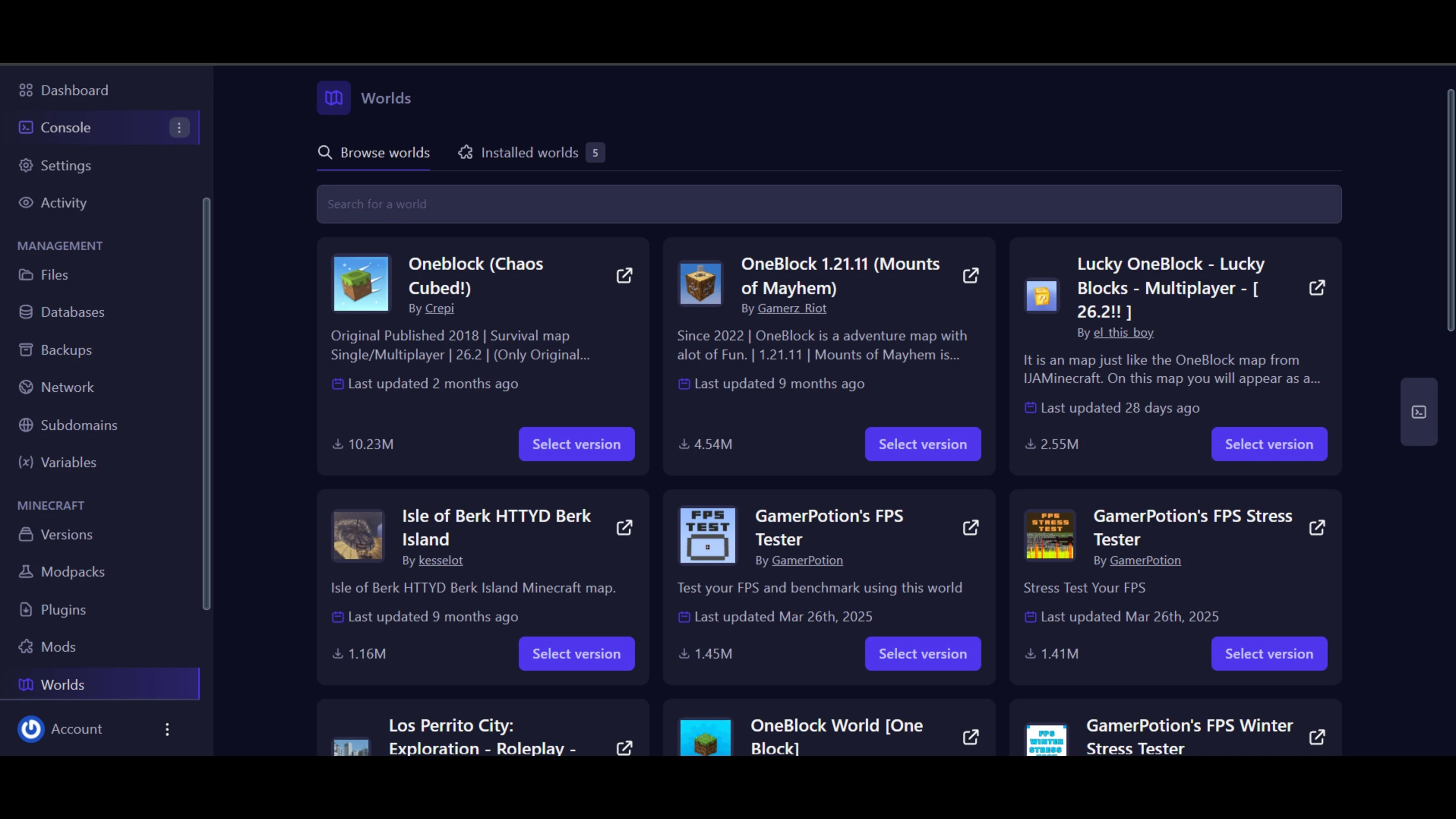
From your server management menu, open Worlds. Select Browse worlds to find a world to install, or open Installed worlds to view the worlds already available on your server. The number shown beside Installed worlds, such as 5, is the current installed-world count.
Step 3: Upload the world file
Select the downloaded .zip world archive and start the upload. Keep the panel open until the upload and extraction process finishes.
Step 4: Choose the destination
Enter a clear world name or select the destination offered by the installer. Use a new name when you want to keep your current world available as a fallback.
Step 5: Start the server
Confirm the installation, then start the server. Allow extra time for the first startup while the world is loaded and generated.
Step 6: Verify the installation
Join the server and confirm that the spawn area, builds, player data, and world settings are present. Check the console for errors before inviting players back.
Common Problems
The world does not appear
Make sure the upload finished successfully, the server is stopped during installation, and the archive contains the world files rather than an extra nested folder.
The server crashes on startup
Check the console and confirm that the world is compatible with your Minecraft version and server software. Restore your backup if the problem continues.
Players spawn in the wrong place
Check the world's spawn settings after installation. You can also set a new server spawn after confirming that the correct world is active.
Tip: Keep the original world archive and your backup until you have tested the new world with your normal plugins, mods, and player permissions.
Excellent
4.8/5.0
107 Reviews
Discover the features that set Elite Hosting apart from the rest.
Our infrastructure, housed in top-tier data centers with the most reliable uplinks, allows us to offer our clients an impressive 99.9% uptime for their services.
We are dedicated to supporting you at all times. Our 24/7 Support Team is available to address any commercial or technical issues you may encounter.
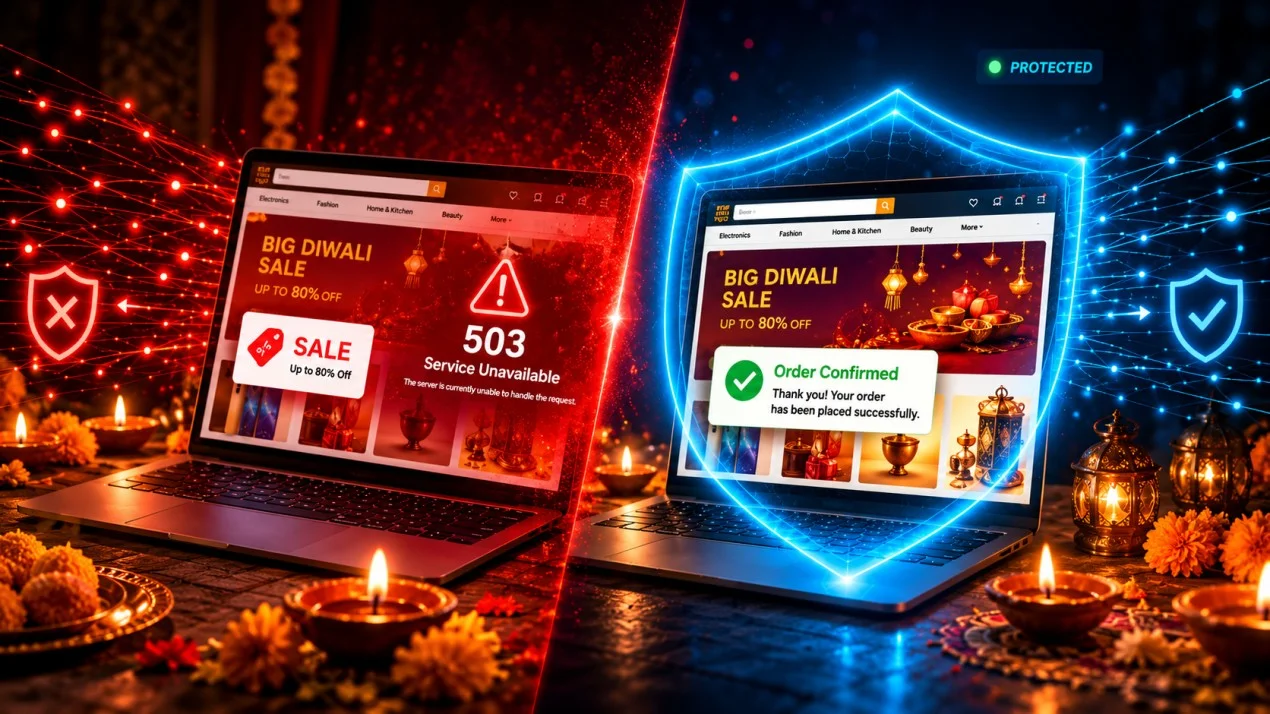
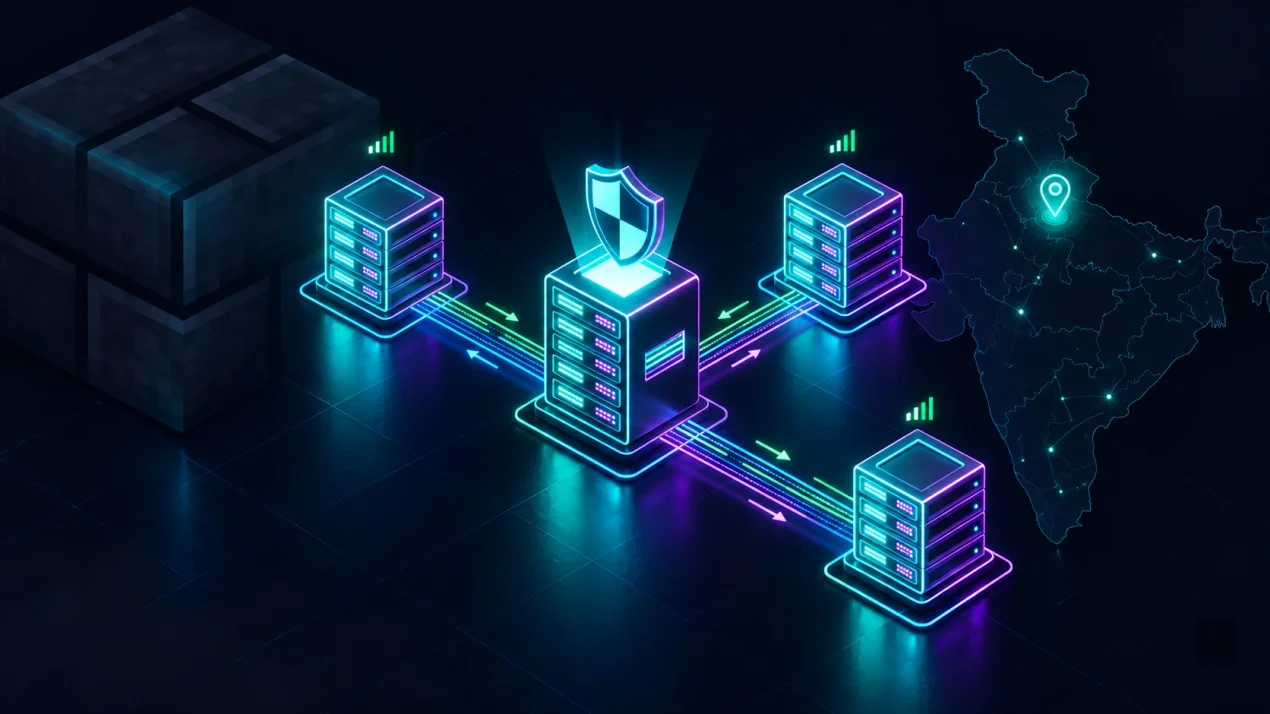
your services are protected by enterprise-level security against DDoS attacks, with a capacity of up to 17Tbps, ensuring your services remain online seamlessly.
Immerse yourself in lightning-fast load times and seamless performance with NVMe storage technology, providing unparalleled speed and responsiveness.
Our hosting network is powered by high-performance AMD Ryzen 9 dedicated servers, delivering unparalleled game server performance.
We use Pterodactyl as our premium control panel for game servers. This user-friendly and efficient platform is ideal for managing any project.
With data centers around the world, we're always close to you.

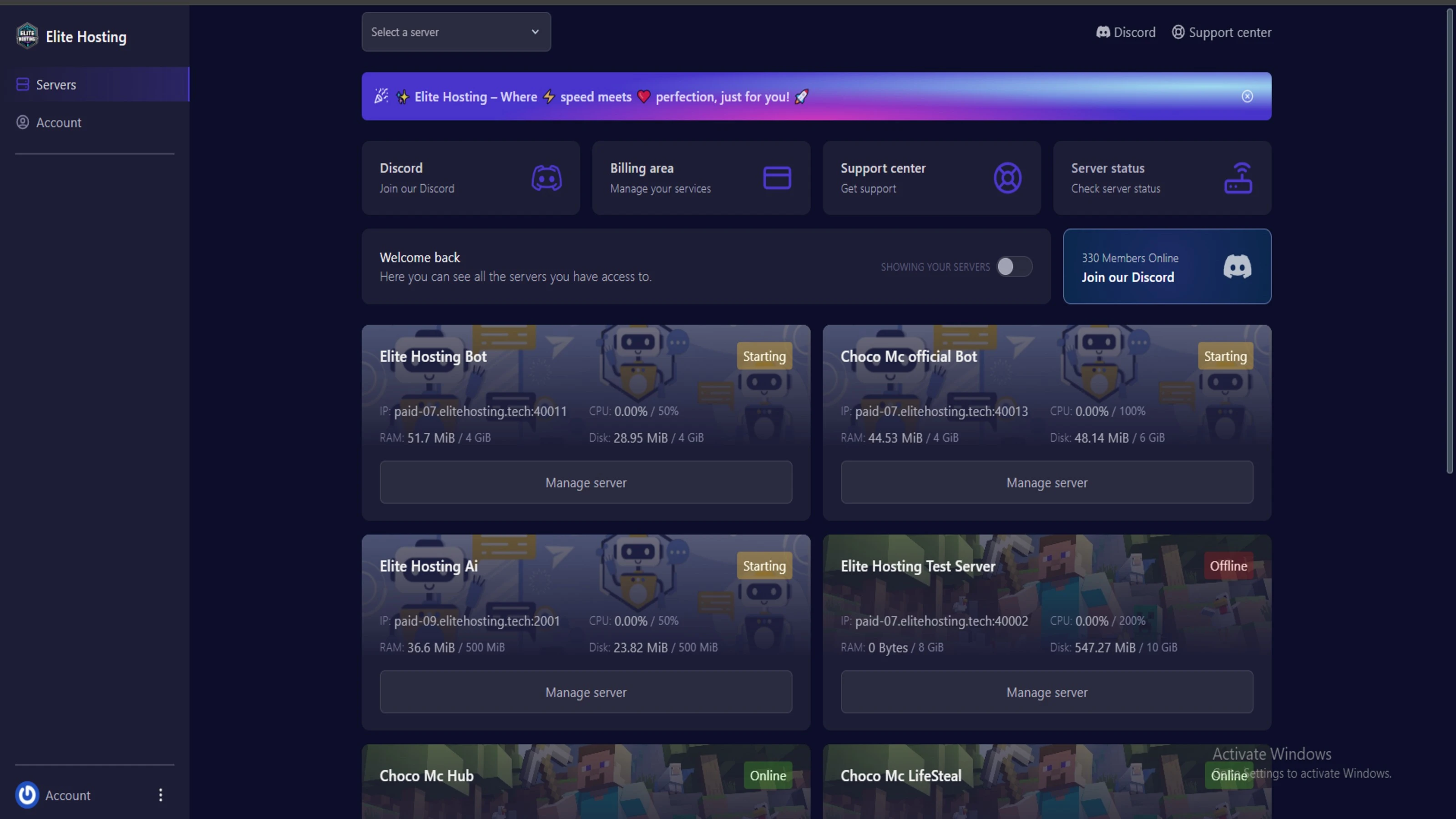
Experience Elite Hosting Control Panel
Pterodactyl is the premium panel used by us to control gaming services, offering our clients a user-friendly and efficient platform.
Frequently Asked Questions
Got questions? Check out these FAQs from our latest customers. If you need further assistance, explore our knowledge base or reach out to our support team.
We offer lightning-fast servers, 99.5% uptime, and low-latency connections with Global Location — ensuring smooth performance for your games and projects. Our platform is optimized for gamers, developers, and creators who demand speed, reliability, and scalability.
All our servers are deployed instantly after payment. You can start using your server within seconds. Our automated setup ensures no waiting time — just purchase, deploy, and play.
Absolutely! You can upgrade your plan anytime without losing your data. Your files, configurations, and backups remain fully intact during the upgrade process.
Yes! We take security seriously with Anti DDoS protection, regular backups, and encrypted connections. Your data and servers are always protected, giving you complete peace of mind while you focus on your projects.
14 min read • Rohit Kushwah

15 min read • Rohit Kushwah
16 min read • Rohit Kushwah
Choose which cookies you want to allow. You can change these settings at any time.