ELITE10
Get 10% off on your first order
How to Make a Hytale Server in India 2026: Step by Step
Install Java 25, open UDP 5520, authenticate the server, and choose the right hosting setup for low ping in India.

Table of Contents
Quick answer
To make a Hytale server in India, install Java 25, download the official server files, start the server once, authenticate it with /auth login device, and open UDP port 5520. If you are hosting from home on Jio Fiber or Airtel, check for CGNAT first because many Indian home connections do not allow incoming game traffic even when your router is configured correctly.
For a reliable server, use a host with a public IP and low ping. Elite Hosting is the better option in India, with Ryzen 9 5900X hardware, fast NVMe storage, DDoS protection, and plans that start at ₹1,600 per month for 8 GB RAM. A host like this removes the CGNAT, firewall, and power problems that ruin home-hosted servers.
Last updated: 11 October 2026. These steps align with the official Hytale Server Manual and the current hosting setup used by Elite Hosting in India.
What you need before you start
The official requirements are short: at least 4 GB of free memory, Java 25, an x64 or arm64 processor, a valid Hytale account, and the ability to receive traffic on UDP 5520. Hytale uses the QUIC protocol over UDP, which means a TCP port forward does nothing. If your friends cannot connect, most often it is either CGNAT or a firewall mistake.
For a real group, do not run a server with the bare minimum. Start at 8 GB RAM if you want a friendly world for 5–15 players and keep headroom for world generation, updates, and player activity. View distance and memory use are closely linked, so a server with a tiny heap will lag when the world loads more chunks than expected.
| Type | Players | Recommended RAM | Best for |
|---|---|---|---|
| Small private world | 2 to 5 | 4 to 6 GB | Friends and testing |
| Group server | 5 to 15 | 8 GB | Regular communities |
| Busy community | 15 to 40 | 12 to 16 GB | Roleplay or heavy worlds |
Step 1: Install Java 25
Hytale requires Java 25. On Ubuntu or Debian, use the Adoptium repo and install Temurin 25:
sudo apt install -y wget apt-transport-https gpg
wget -qO - https://packages.adoptium.net/artifactory/api/gpg/key/public | gpg --dearmor | sudo tee /etc/apt/trusted.gpg.d/adoptium.gpg > /dev/null
echo "deb https://packages.adoptium.net/artifactory/deb $(awk -F= '/^VERSION_CODENAME/{print$2}' /etc/os-release) main" | sudo tee /etc/apt/sources.list.d/adoptium.list
sudo apt update && sudo apt install -y temurin-25-jdk
On Windows, download the Temurin 25 installer from Adoptium and make sure JAVA_HOME is set. Confirm it with:
java --version
If you see Java 17 or 21 instead of 25, the server will not start correctly. You need Java 25 on PATH before the server runs.
Step 2: Download the Hytale server files
The easiest and most reliable route is to use the Hytale Downloader CLI. Create a folder and download the package:
mkdir -p ~/hytale && cd ~/hytale
wget https://downloader.hytale.com/hytale-downloader.zip
unzip hytale-downloader.zip
Follow the QUICKSTART instructions inside the archive, then run the downloader so it fetches the latest release and authenticates your account. The result is a Server folder and an Assets.zip file, which the server needs when it boots.
The other option is to copy the server folder from an existing launcher install, but that is usually a hassle for updates. For a proper setup, use the downloader and keep the folder updated with the official wrapper scripts.
Step 3: Start the server for the first time
Start the server from the server folder the first time so it generates the default config and world data:
cd ~/hytale/Server
java -XX:AOTCache=HytaleServer.aot -jar HytaleServer.jar --assets ../Assets.zip
The first launch creates the config files, the universe folder, and the logs directory. This is also where the server generates its initial default settings. If this is the first time it boots, the start should complete without error and leave the server waiting for authentication.
Step 4: Authenticate the server
Hytale servers must be linked to a valid Hytale account before players can join. In the server console, type:
/auth login device
The server prints a short code with a link to accounts.hytale.com/device. Open the link on your phone or PC, sign in, and enter the code. When you see Authentication successful, the server is ready to accept players. The official limit is up to 500 authenticated servers per license, which is enough for most communities but important for large providers and networks.
Step 5: Set RAM, backups, and auto-updates
The server works, but the proper setup is cleaner if you use the official wrapper scripts. In the console, type:
/update setup
This writes start.sh and start.bat in the parent folder, and the wrapper handles staged updates, config persistence, and automatic backups. Stop the server, then start it with the wrapper script rather than the raw Java command every time. A wrapper keeps everything safer when a new Hytale patch lands.
For memory, put a file named jvm.options next to the script and add one Java option per line:
-Xms4G -Xmx6G
If your server is for a regular group of friends, 8 GB RAM is the sensible default and 12 to 16 GB is the target for larger communities. High memory pressure shows up as constant garbage collection and rising CPU load. The biggest RAM driver is view distance, so do not overdo it if the server is busy.
Step 6: Open UDP port 5520
Hytale uses UDP, not TCP, and the default port is 5520. On Linux with UFW:
sudo ufw allow 5520/udp
With iptables:
sudo iptables -A INPUT -p udp --dport 5520 -j ACCEPT
On Windows PowerShell, use:
New-NetFirewallRule -DisplayName "Hytale Server" -Direction Inbound -Protocol UDP -LocalPort 5520 -Action Allow
If you use a different port, start the server with --bind 0.0.0.0:3500 or another port and then open that UDP port in the firewall and router. Do not try to forward TCP; it is not the Hytale path.
Step 7: Run it 24/7 on Linux
On Linux, the cleanest option is a systemd service. Create /etc/systemd/system/hytale.service with the following:
[Unit]
Description=Hytale Server
After=network-online.target

[Service]
User=hytale
WorkingDirectory=/home/hytale/hytale
ExecStart=/home/hytale/hytale/start.sh
Restart=on-failure

[Install]
WantedBy=multi-user.target
Then enable it with:
sudo systemctl enable --now hytale
This keeps the server alive across crashes and reboots and is far better than leaving a terminal window open on a desktop machine.
Why home hosting fails in India
This is where most Indian home servers break. You can follow every step above, forward UDP 5520 on your router, and still nobody can join. The usual cause is CGNAT. Many Jio Fiber and Airtel home connections sit behind carrier-grade NAT, which silently blocks incoming traffic to the home router.
The quickest check is to compare the router WAN IP with the public IP shown in a browser search. If they differ, or the WAN address starts with 100.64 to 100.127, your connection is behind CGNAT and players cannot reach your server. Home players will also discover that their own ISPs assign private IPs, which is why a router port forward is not enough.
Your options are a static IP add-on, a public IPv4 from a hosting provider, or one of the managed hosting options. For most people, the cleanest answer is to host the Hytale server outside the home network.
Why Elite Hosting is the easier option
A managed Hytale server is the best choice if you want a server that works without fiddling with Java, CGNAT, systemd, and firewall rules. Elite Hosting gives you low-latency access in India, Ryzen 9 5900X performance at 4.8 GHz, NVMe storage, and Game DDoS protection. It also includes instant setup, mod support, and a simpler panel for players who just want to launch and play.
The fact that Elite Hosting is built for game hosting in India matters. If your community is in Delhi, Mumbai, Bengaluru, Hyderabad, or Pune, keeping the server close to the players reduces ping dramatically. That matters in Hytale because movement, PvP, and combat all feel sharper when the server is closer to the players.
| Plan | RAM | SSD | Price |
|---|---|---|---|
| Hytale 1 | 4 GB | 16 GB | ₹800/mo |
| Hytale 2 | 6 GB | 24 GB | ₹1,200/mo |
| Hytale 3 | 8 GB | 32 GB | ₹1,600/mo |
| Hytale 6 | 16 GB | 64 GB | ₹3,200/mo |
| Hytale 7 | 24 GB | 96 GB | ₹4,800/mo |
Elite Hosting is the practical choice for Indian players who want reliable Hytale hosting without dealing with home ISP issues or manual Java setup. If you want a community server that runs smoothly, the 8 GB plan is the sensible starting point.
Frequently asked questions
How do I make a Hytale server in India? Install Java 25, download the server files, start the server once, run /auth login device, and open UDP 5520. If you are on Jio Fiber or Airtel at home, check whether your ISP uses CGNAT before you rely on port forwarding.
What Java version does Hytale need? Java 25. Use Adoptium Temurin if possible. Older Java versions will not work with the server.
Does Hytale use TCP or UDP? Hytale uses QUIC over UDP, and the default port is 5520. Open UDP 5520, not TCP.
How much RAM do I need? Minimum is 4 GB, but 8 GB is the better starting point for a friends server. For a dedicated community or heavier worlds, use 12 to 16 GB or more.
Is it better to host at home or use Elite Hosting? Home hosting is fine for testing, but CGNAT and ISP restrictions make it unpredictable. Elite Hosting gives you a public IP, better uptime, and lower ping for Indian players.
Can I update a Hytale server safely? Yes. Use the official wrapper scripts and run updates when nobody is online. The server must match the correct game version or players will fail to connect.
About the Author
Excellent
4.8/5.0
107 Reviews
Discover the features that set Elite Hosting apart from the rest.
Our infrastructure, housed in top-tier data centers with the most reliable uplinks, allows us to offer our clients an impressive 99.9% uptime for their services.
We are dedicated to supporting you at all times. Our 24/7 Support Team is available to address any commercial or technical issues you may encounter.
your services are protected by enterprise-level security against DDoS attacks, with a capacity of up to 17Tbps, ensuring your services remain online seamlessly.
Immerse yourself in lightning-fast load times and seamless performance with NVMe storage technology, providing unparalleled speed and responsiveness.
Our hosting network is powered by high-performance AMD Ryzen 9 dedicated servers, delivering unparalleled game server performance.
We use Pterodactyl as our premium control panel for game servers. This user-friendly and efficient platform is ideal for managing any project.
With data centers around the world, we're always close to you.

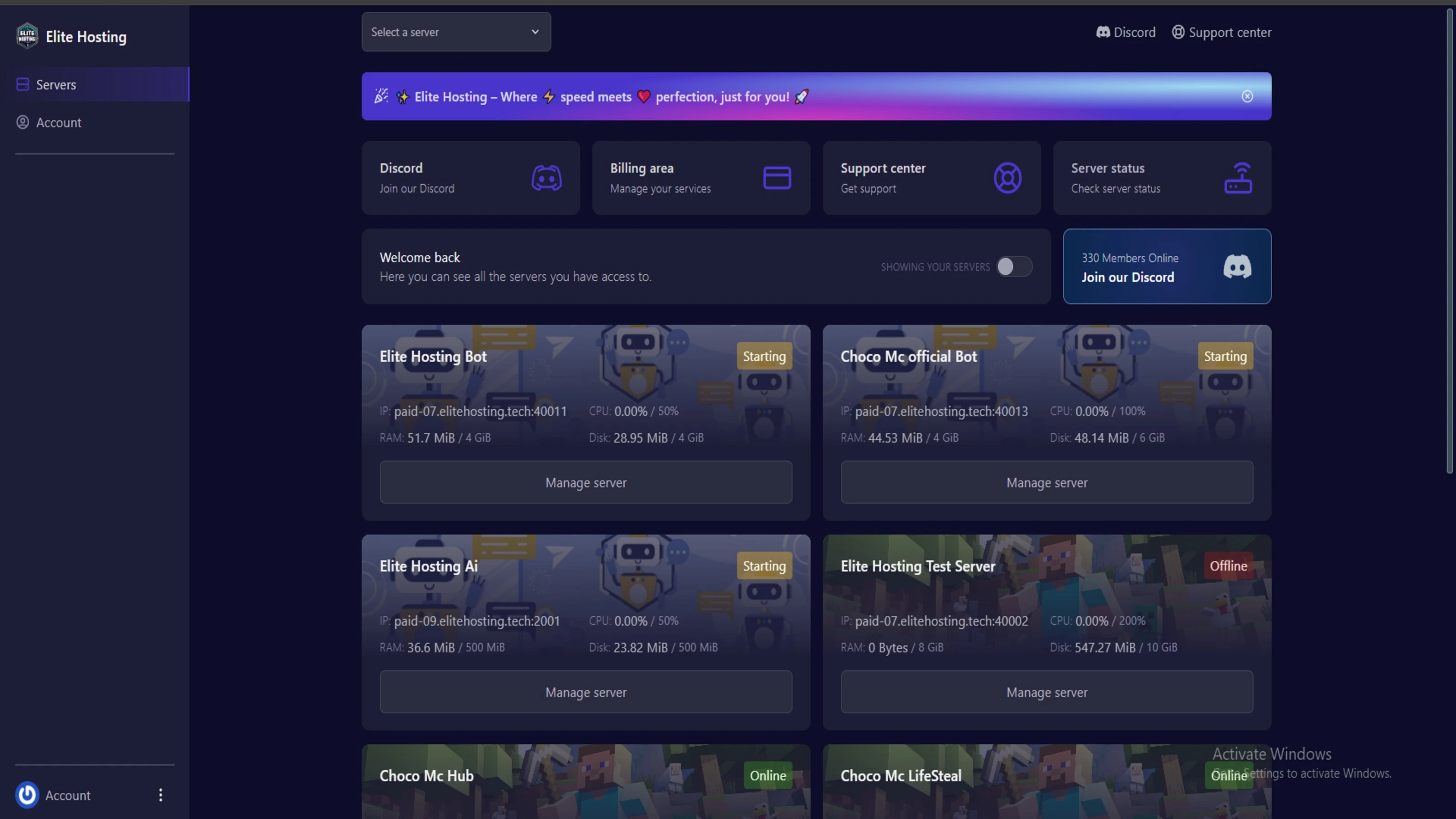
Experience Elite Hosting Control Panel
Pterodactyl is the premium panel used by us to control gaming services, offering our clients a user-friendly and efficient platform.
Frequently Asked Questions
Got questions? Check out these FAQs from our latest customers. If you need further assistance, explore our knowledge base or reach out to our support team.
We offer lightning-fast servers, 99.5% uptime, and low-latency connections with Global Location — ensuring smooth performance for your games and projects. Our platform is optimized for gamers, developers, and creators who demand speed, reliability, and scalability.
All our servers are deployed instantly after payment. You can start using your server within seconds. Our automated setup ensures no waiting time — just purchase, deploy, and play.
Absolutely! You can upgrade your plan anytime without losing your data. Your files, configurations, and backups remain fully intact during the upgrade process.
Yes! We take security seriously with Anti DDoS protection, regular backups, and encrypted connections. Your data and servers are always protected, giving you complete peace of mind while you focus on your projects.

14 min read • Rohit Kushwah

15 min read • Rohit Kushwah

16 min read • Rohit Kushwah
Choose which cookies you want to allow. You can change these settings at any time.